Get things done.
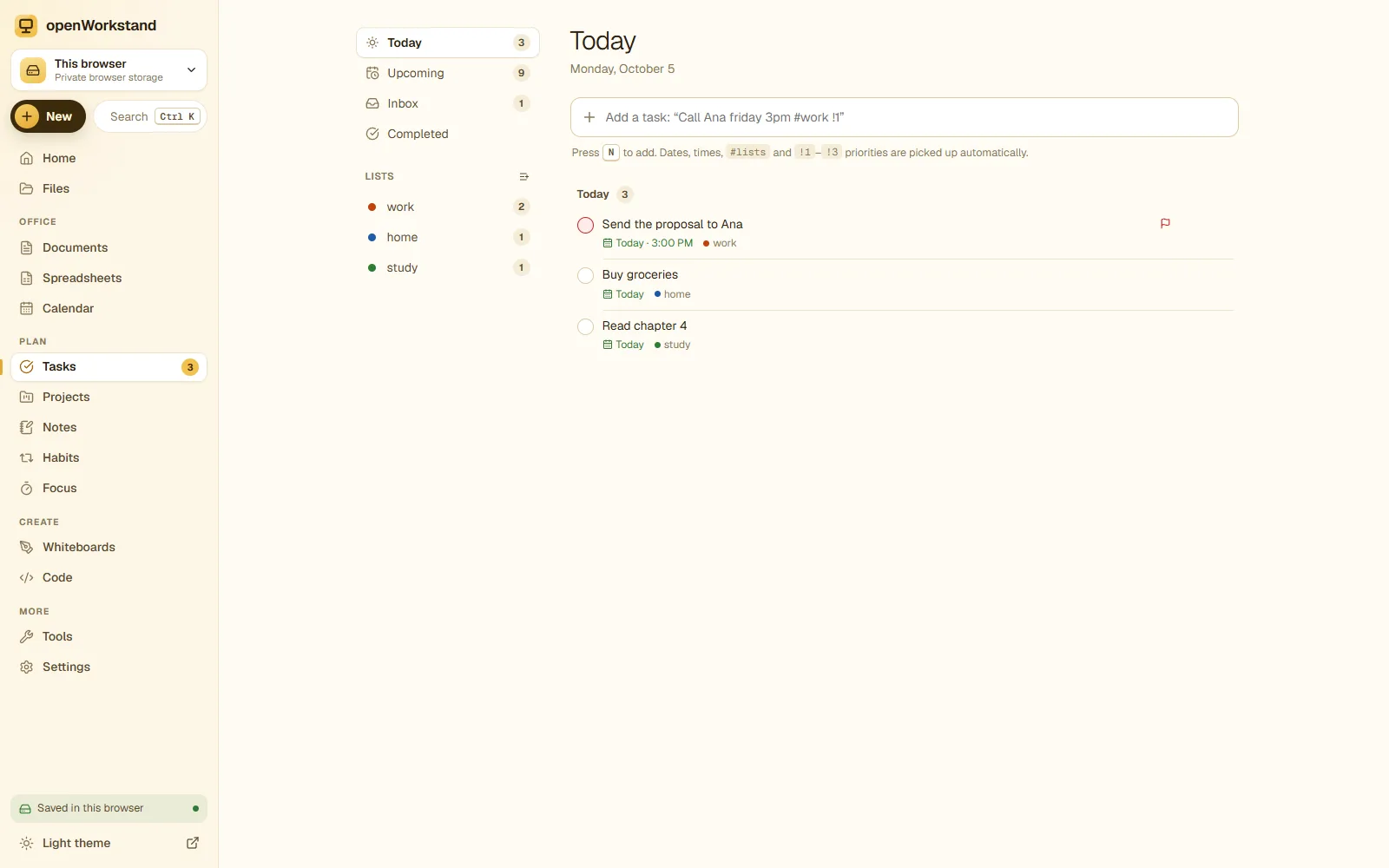
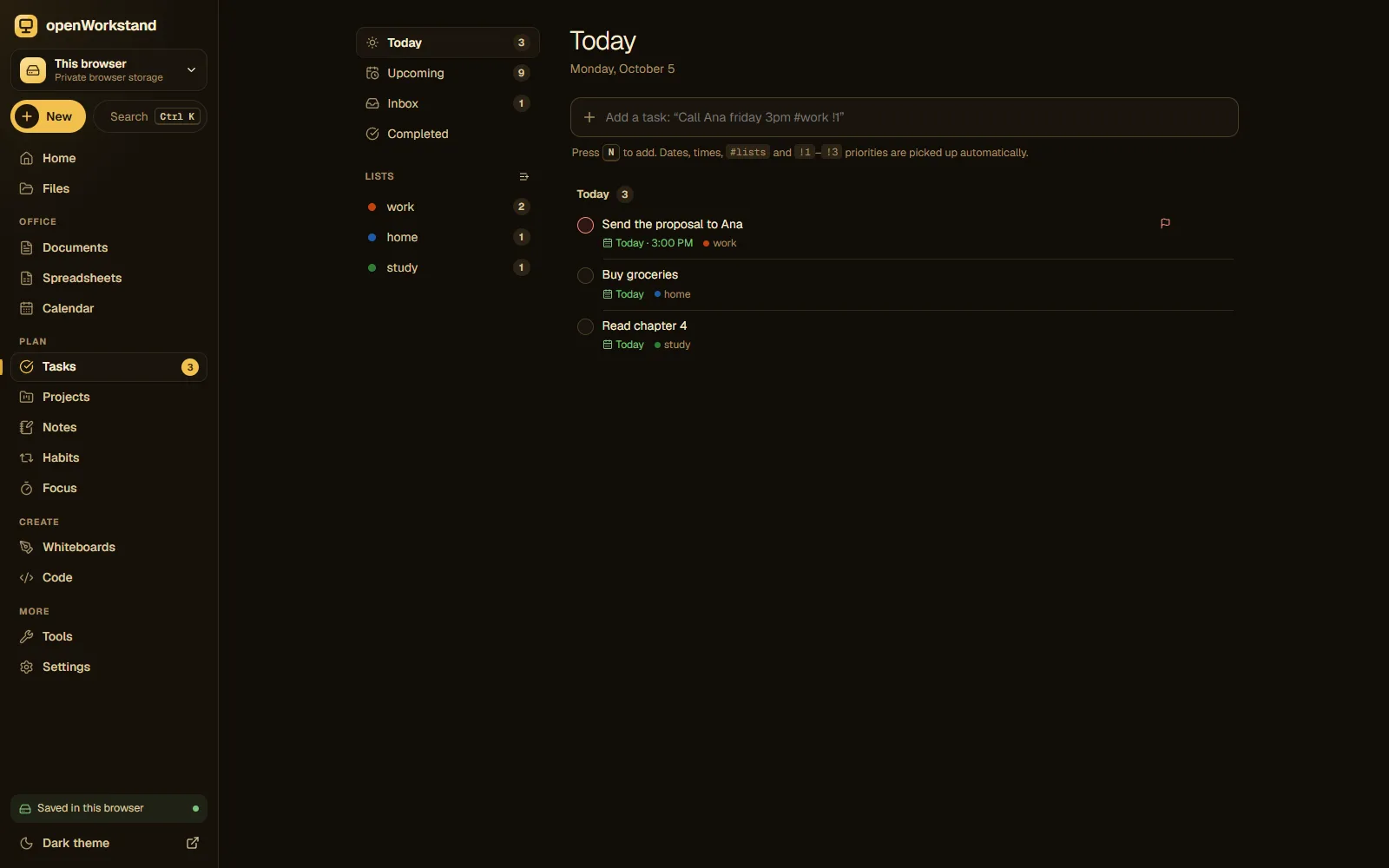
Add tasks in plain language like “Call Sam tomorrow 3pm !high”, sort them into lists and see exactly what is due today. Everything is saved in your own workspace folder.
What you get
Natural-language quick add
Type “Pay rent friday #home !high” and the date, list and priority are set for you.
Today and Upcoming
See what is due today, overdue and coming up this week.
Priorities and lists
Color-coded lists and three priority levels keep the important work on top.
In your calendar
Tasks with due dates appear in the calendar next to your events.
Focus on a task
Start a focus session from any task and track the time spent.
Saved on your computer
Your tasks are a file in your Tasks folder, not in a cloud account.
Three steps. No account.
- Choose a folder on your computer for your workspace.
- Type a task in plain language and press Enter.
- Check it off and watch your day clear.
Saved in your own Tasks folder.
openWorkstand works on files in a folder you choose on your computer. Nothing is uploaded and there is no account, so yourto-do list stay private and keep working without the internet.
File formats
- JSON
- CSV export
Stored in
- Tasks/
- My openWorkstand
- Documents
- Spreadsheets
- Notes
- Tasks← To-do list
- Projects
- Calendar
- Whiteboards
- Code
- PDFs
- Images
Frequently asked questions
Where are my files saved?
In a folder you choose on your own computer (for example Documents/openWorkstand). openWorkstand has no servers that store your work, so nothing is uploaded. In browsers that cannot open a folder, files are kept in private browser storage on your device and you can download them at any time.
Is it really free?
Yes. There is no paid plan, no trial and no account. openWorkstand is supported by a few ads on public tool pages; there are never ads inside your workspace.
Ready when you are.
No sign-up, nothing to install. Your files stay on your computer.